Posts

Showing posts with the label ios

Read Contacts Data on iOS and Android in xamarin forms

Image
Step 1 :  Add the following plugin in your projects : https://www.nuget.org/packages/Xamarin.Forms.Contacts/ PERMISSIONS :     1- android :   < uses-permission android : name = " android.permission.READ_CONTACTS " /> 2- IOS : < key >NSContactsUsageDescription</ key > < string >We need contact permission to do ...</ string > Usage : you can read contacts in portable project : var contacts = await Plugin.ContactService.CrossContactService.Current.GetContactListAsync(); Example : Page code : using System ; using System . Collections . Generic ; using System . Linq ; using System . Text ; using System . Threading . Tasks ; using Xamarin . Forms ; namespace Sample . ContactService { public partial class MainPage : ContentPage { # pragma warning disable CS4014 // Because this call is not awaited, execution of the current method continues before ...
Nightly Builds In Xamarin Forms

Image
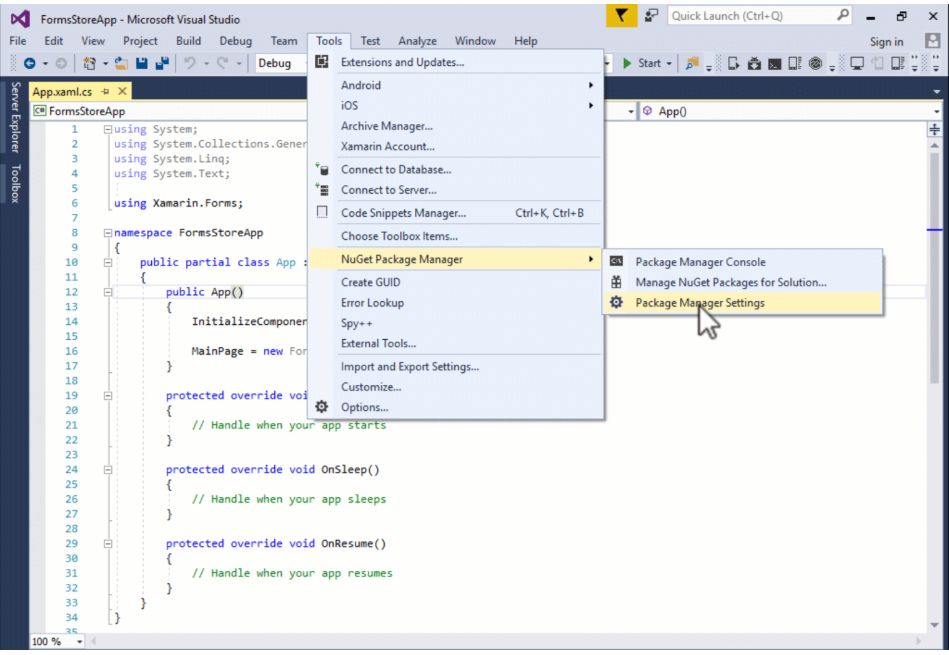
 to try the latest-and-greatest in Xamarin.Forms through our new nightly build feed. Nightly builds will enable a tighter feedback loop with those of you in our community as we strive for quality and performance improvements. It also allows you to test and review changes and features that will appear in the next pre-release. How to Access Nightly Builds Our nightly builds are distributed via a custom NuGet feed. To access these builds, configure a new source in either the Visual Studio or Xamarin Studio NuGet Package Manager, select that source when browsing packages, and be sure to check the pre-release option. You can find the feed at Xamarin.Forms Nightly: https://www.myget.org/F/xamarinforms-ci/api/v2 Visual Studio :  Open the settings panel by going to Tools > NuGet Package Manager > Package Manager Settings. Select the Package Sources page. Click the green plus icon to add a new source. Enter the name and source with the information above. Click Up...

Zoom an Image with the Pinch gesture in xamarin forms

Step 1 : add xaml code in your page : <Image Source="test.jpg">  <Image.GestureRecognizers>   <PinchGestureRecognizer PinchUpdated="OnPinchUpdated" />  </Image.GestureRecognizers> </Image> Step 2 : add this code in your code file :         private double startScale;         private double currentScale;         private double xOffset;         private double yOffset;         void OnPinchUpdated(object sender, PinchGestureUpdatedEventArgs e)         {             if (e.Status == GestureStatus.Started)             {                 startScale = Content.Scale;                 Content.AnchorX = 0;                 Content.A...

How To Return A C# Anonymous Type From A Method

Step 1 : Use the follwing method : private   static   object  ReturnAnonymous() { return   new  { FirstName =  "FName" , MiddleName =  "MName" , LastName =  "LName"  }; } Step 2: Use the follwing method to cast your object : private   static  T Cast<T>( object  o, T type) { return  (T)o; } Step 3:and you can use the code like that : static   void  Main( string [] args) { var anon = Cast(ReturnAnon(),  new  { FirstName =  “” , MiddleName =  “” , LastName =  “”  }); Console.WriteLine(String.Format( “FirstName: {0}” , anon.FirstName)); Console.WriteLine(String.Format( “MiddleName: {0}” , anon.MiddleName)); Console.WriteLine(String.Format( “LastName: {0}” , anon.LastName)); Console.ReadLine(); }

Checkbox and RadioButon in xamarin forms

Image
Step 1: Install the following plugin : Xamarin.Forms.InputKit Step 2 : Add this line in page deceleration:    xmlns:input="clr-namespace:Plugin.InputKit.Shared.Controls;assembly=Plugin.InputKit" Step 3 : 1 . CheckBox you can use checkbox like that :              <input:CheckBox Text="Option 1" Type="Box" />             <input:CheckBox Text="Hello World I'm Option 2" Type="Check"/>             <input:CheckBox Text="Consetetur eum kasd eos dolore Option 3" Type="Cross"/>             <input:CheckBox Text="Sea sed justo" Type="Star"/> Result : ** checkbox have the following properties : CheckChanged: (Event) Invokes when check changed. CheckChangedCommand: (Command) Bindable Command, executed when check changed. Key: (int) A key you can set to define checkboxes as ID. Text: (string) Text...

Checking Battery Status Using Xamarin.Forms

Step 1 : add the following NuGet Packages to your project. Xam.Plugin.Battery  Step 2 :  Use the following Code :   private void btn_Clicked(object sender, EventArgs e)          {              if (CrossBattery.IsSupported)              {                  var falta = CrossBattery.Current.RemainingChargePercent;  //Current battery level 0 - 100                Lb1.Text = $"PERSENTAGE: {falta.ToString()}";                     var status = CrossBattery.Current.Status;  // Current status of the battery                Lb1.Text += $"STATUS:{status.ToString()}\n";                  ...

Prevent Rapid Clicks On a Button in Xamarin Forms

Things developers face while programming: We have seen rapid clicking on a button invoking the same event or the same process many times. Here we will find a way to control the rapid click error of a button. We can write a class named SingleClick, in which we will write a method, Click with Object and EventArgs, as arguments to do the magic. Refer to the below code snippet for more.  public class SingleClick   {       bool hasClicked;       #region Button Click       Action < object, EventArgs > _setClick;       public SingleClick(Action < object, EventArgs > setClick)       {           _setClick = setClick;       }#endregion Button Click          public void Click(object s, EventArgs e)        {           if (!hasCli...

Xamarin Forms Activity Lifecycle

Image
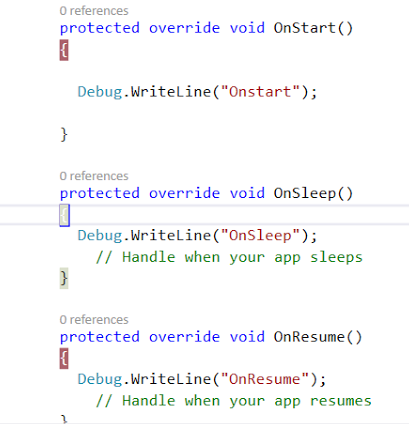
Before starting with Xamarin Forms it's important that we should have a strong knowledge of Xamarin Forms Activity Life Cycle. So without wasting any time let's dive into it. Let's create a Xamarin Forms Project in Visual Studio 2017 or Xamarin Studio. Once you've successfully created a Xamarin Forms Project then you'll see App.cs Page. Open it up and in this App.cs you'll see three different activity methods;  i.e., OnStart() OnSleep() OnResume() OnStart   : is called the first time you launch an application. OnSleep   : is called when your activity goes into the background state. OnResume  : is called when your activity again comes on the front screen or simply says when your application comes from the OnSleep state, then the OnResume method will be called. Enough for this for now --  it's time to put in some break point and try to implement this life cycle in your Xamarin Forms Application. I've simply put three different b...